
Set up your pet tag
It takes about five minutes. You’ll need your phone and the setup card that came with the tag.
Keep your setup card until setup is done. It has the PIN you need to activate the tag.
-
Step 1: Tap or scan your tag
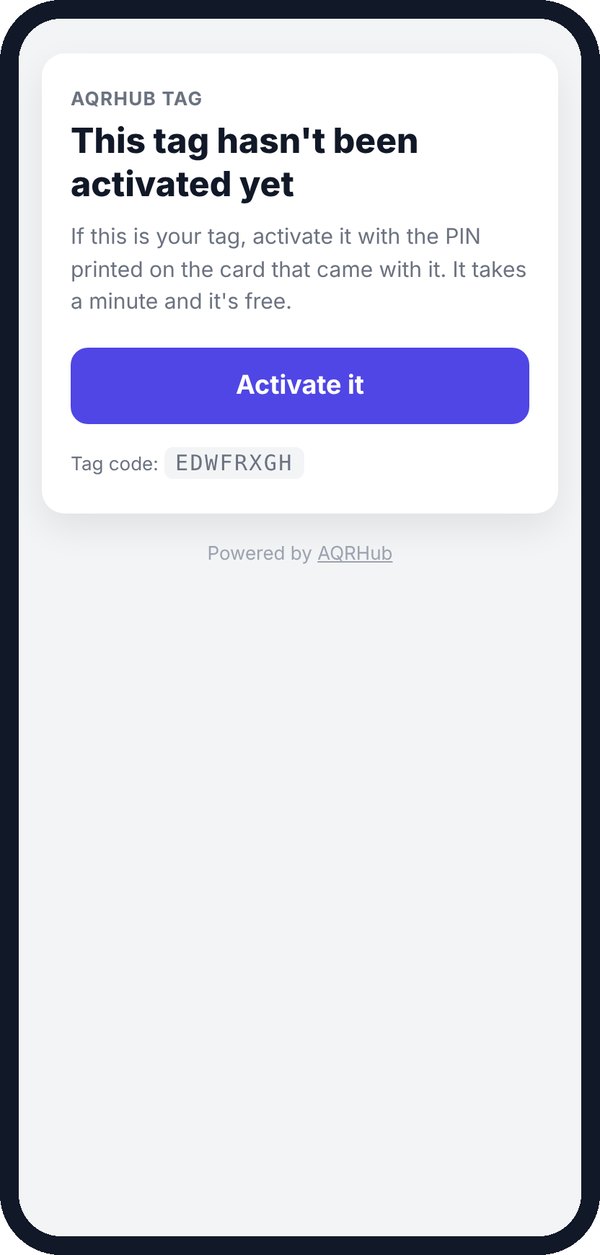
Hold your phone near the tag, or point the camera at the QR code. The tag’s page opens in your browser.
-
Step 2: Tap Activate
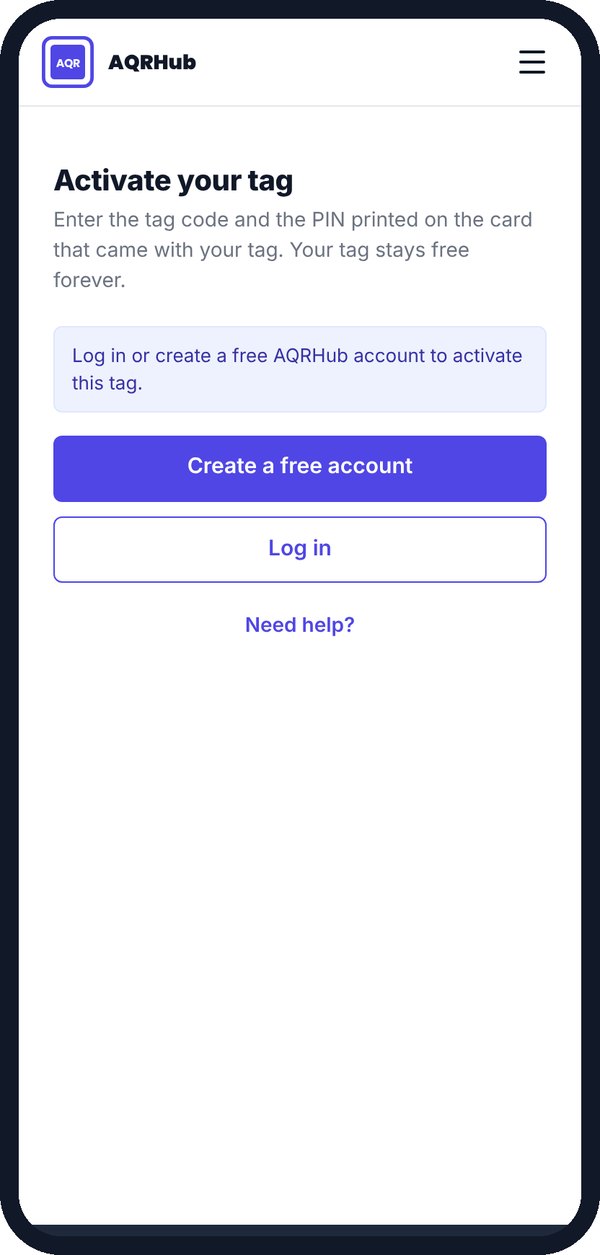
A new tag says it hasn’t been activated yet. Tap Activate it.
-
Step 3: Create a free account or log in
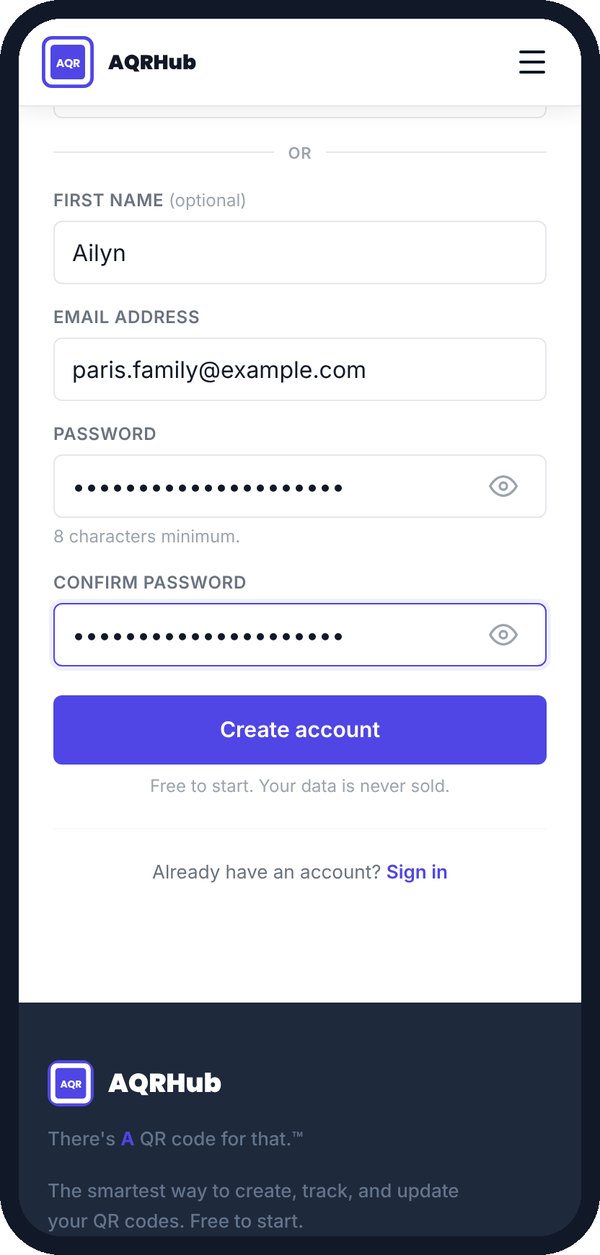
Use your email, or log in if you already have an AQRHub account. We’ll ask you to confirm your email.
-
Step 4: Enter the PIN from the setup card
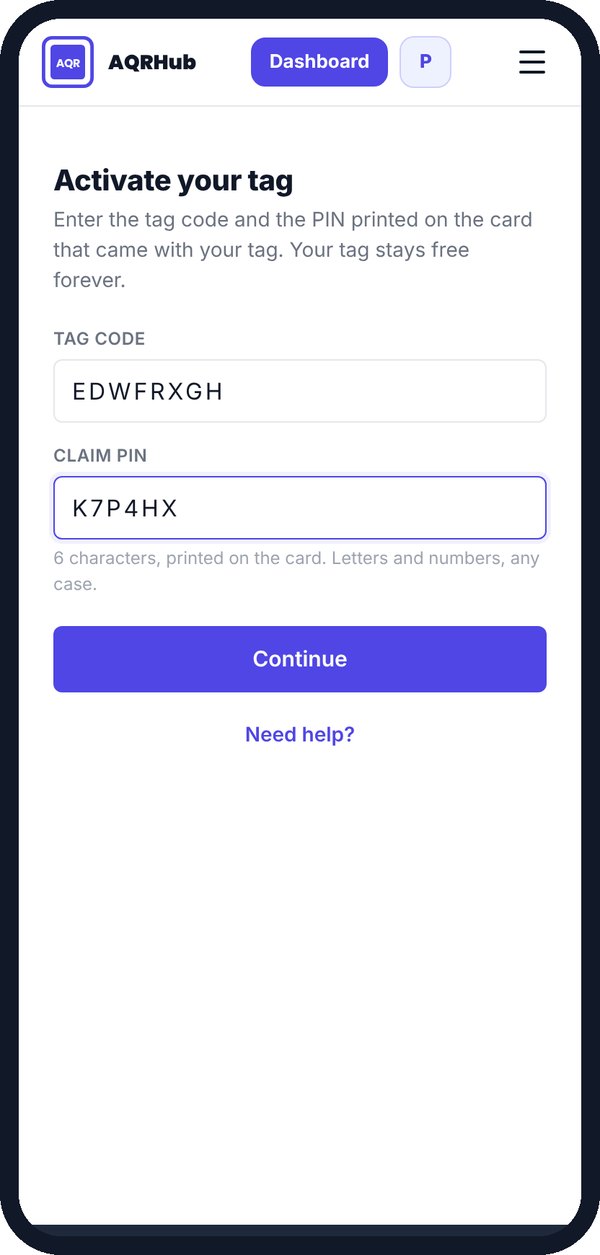
Gently scratch the gray scratch-off area on the setup card with a coin to reveal the 6-character PIN, then type it in. Capitals don’t matter.
-
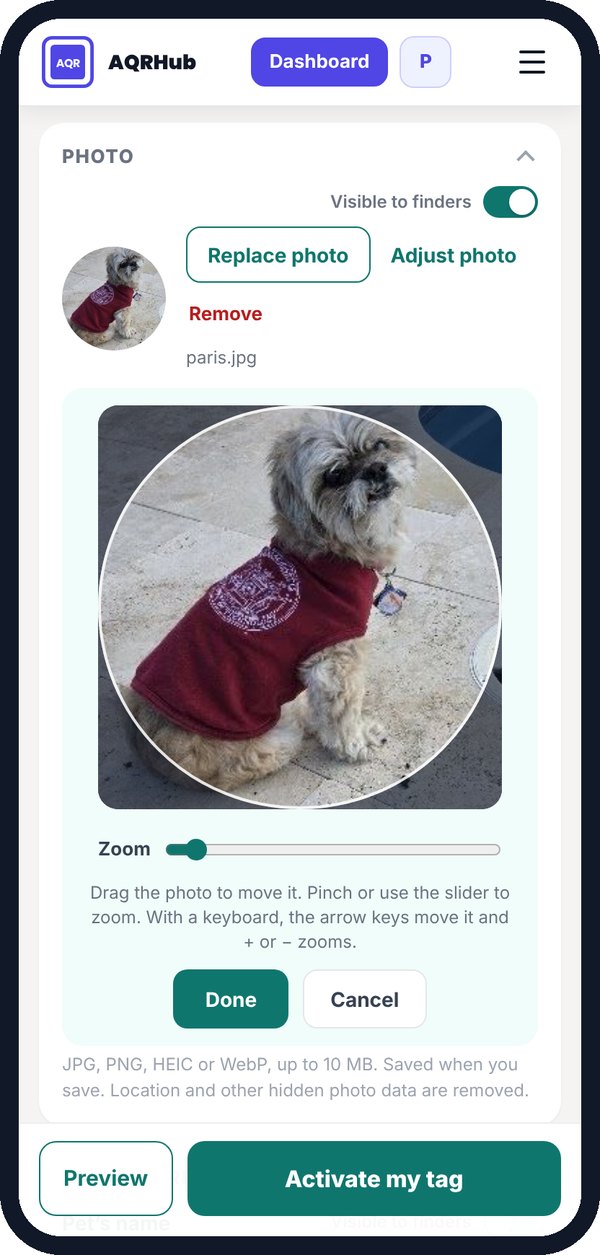
Step 5: Add your pet’s name and photo
Type your pet’s name, then add a photo. Drag it and zoom to position your pet in the circle.
-
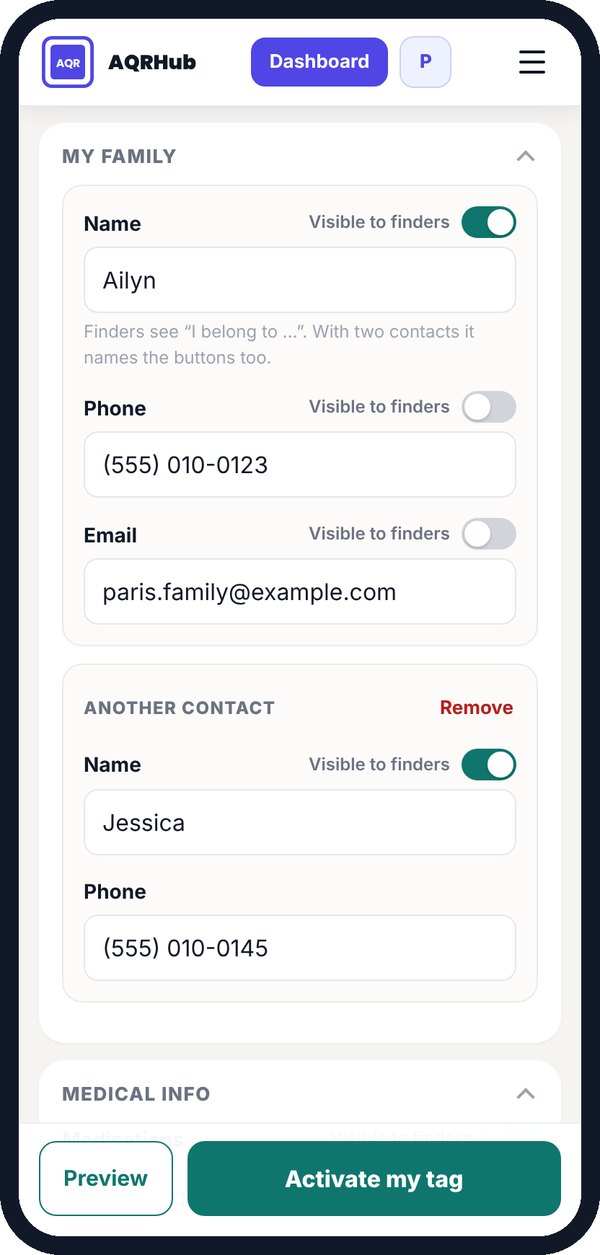
Step 6: Add your contacts
Your name, phone number and email, and a second contact if you like. Add a short message, for example “I’m friendly, please call my family”.
-
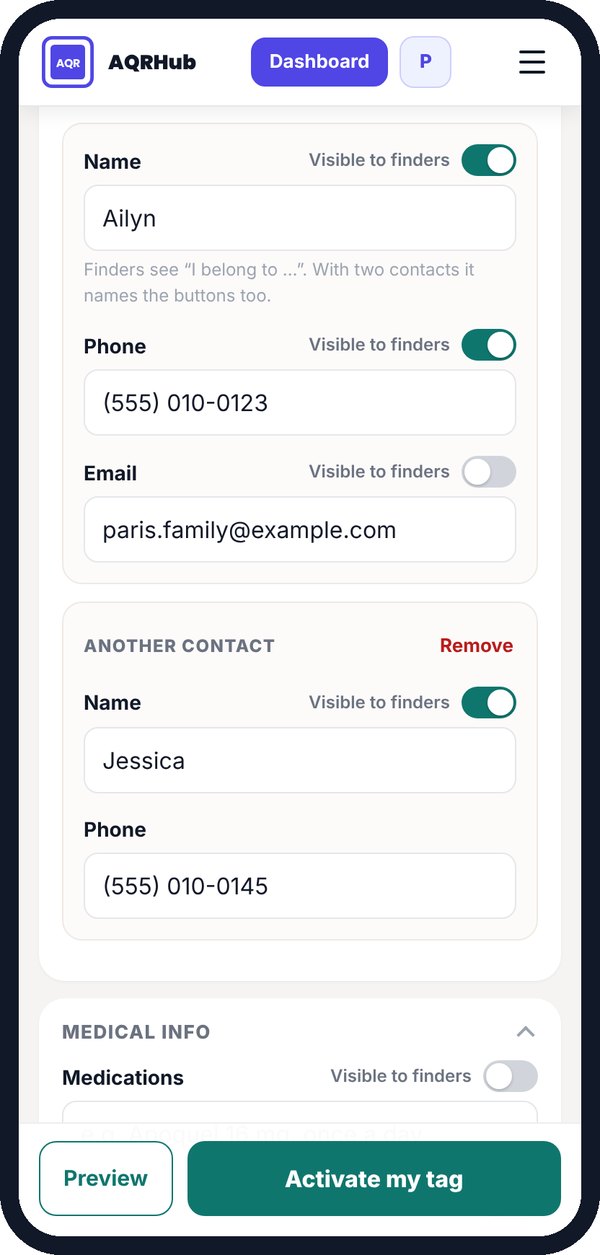
Step 7: Choose what finders see
Each detail has a Visible to finders switch. Show at least a phone or an email, then tap Activate my tag.
Test your tag
Tap the tag with your phone (or scan its QR code). You’ll see exactly what a finder sees: your pet’s page with the details you chose to show.
Want to change something? Log in and open My Tags on your dashboard, then Edit profile.
See an example finder page